What I am owed
Keep the software that issues your invoices.
Hechbonit takes care of the pile that comes in. Photograph the invoice you have just issued, the receipt, the credit note — and your customer balances come out right. Who owes you what, for how many days, and a button that opens WhatsApp with the reminder already written.
Importing an income document
The app knows this document came from your own business: it picks up the customer it is addressed to (the name that follows לכבוד), never the issuer.
- Five types recognised from their heading: tax invoice (חשבונית מס), tax invoice / receipt (חשבונית מס קבלה), receipt (קבלה), credit note (חשבונית זיכוי) and Z report (דוח Z)
- The document keeps its original number: you and your customer are talking about the same piece of paper
- A customer is recognised by their business number (ח.פ), which takes precedence over the name — the same one is never created twice
- A receipt or a tax invoice / receipt is filed as already collected, with nothing more for you to say
- Line discounts, the overall discount and agorot rounding (עיגול אגורות) all come back exactly as printed
- Two safeguards against saving the same document twice, one of which catches a misread number
Who owes you what
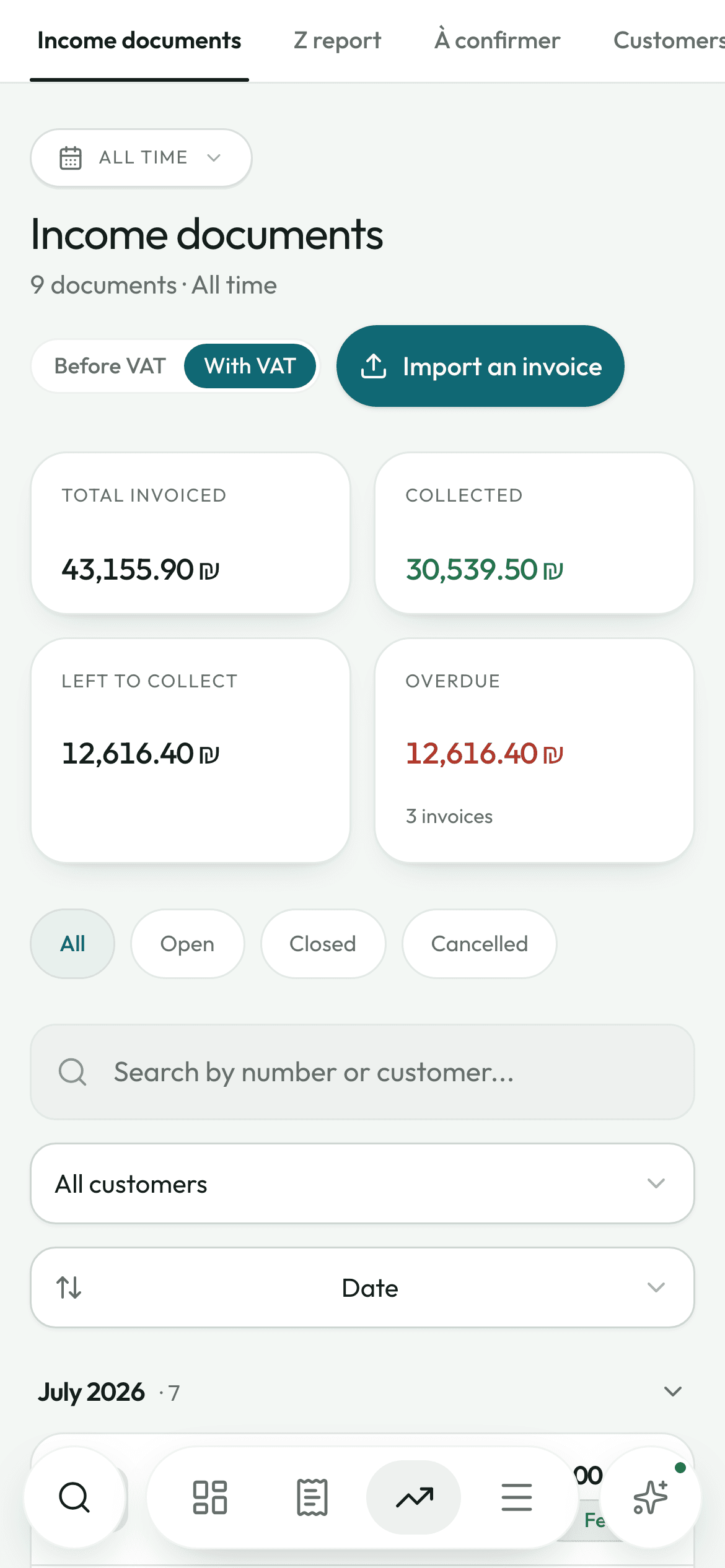
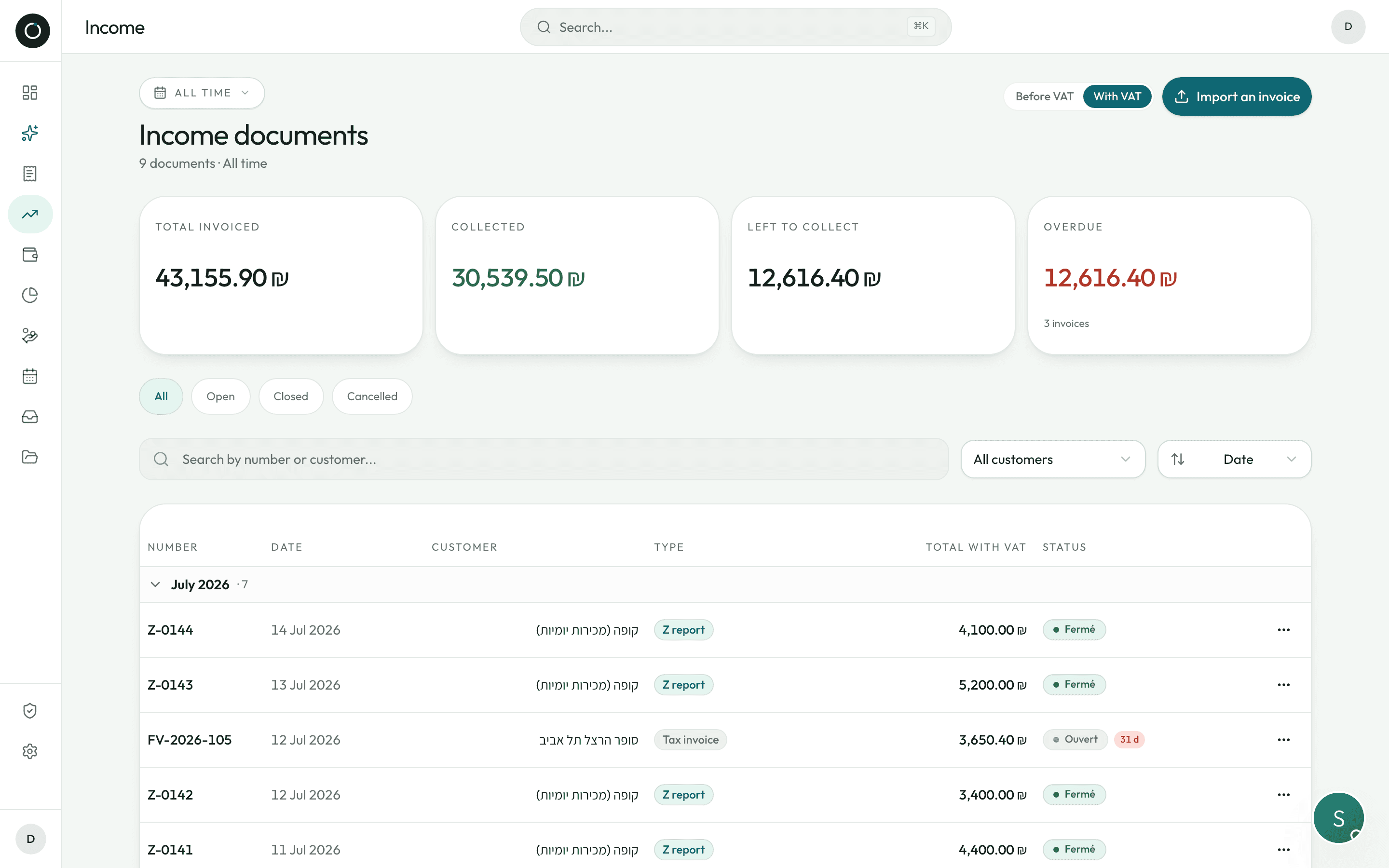
Four cards at the top of the screen, worked out again over the period you choose: Total invoiced, Collected, Left to collect, Overdue — each with the number of invoices behind it.
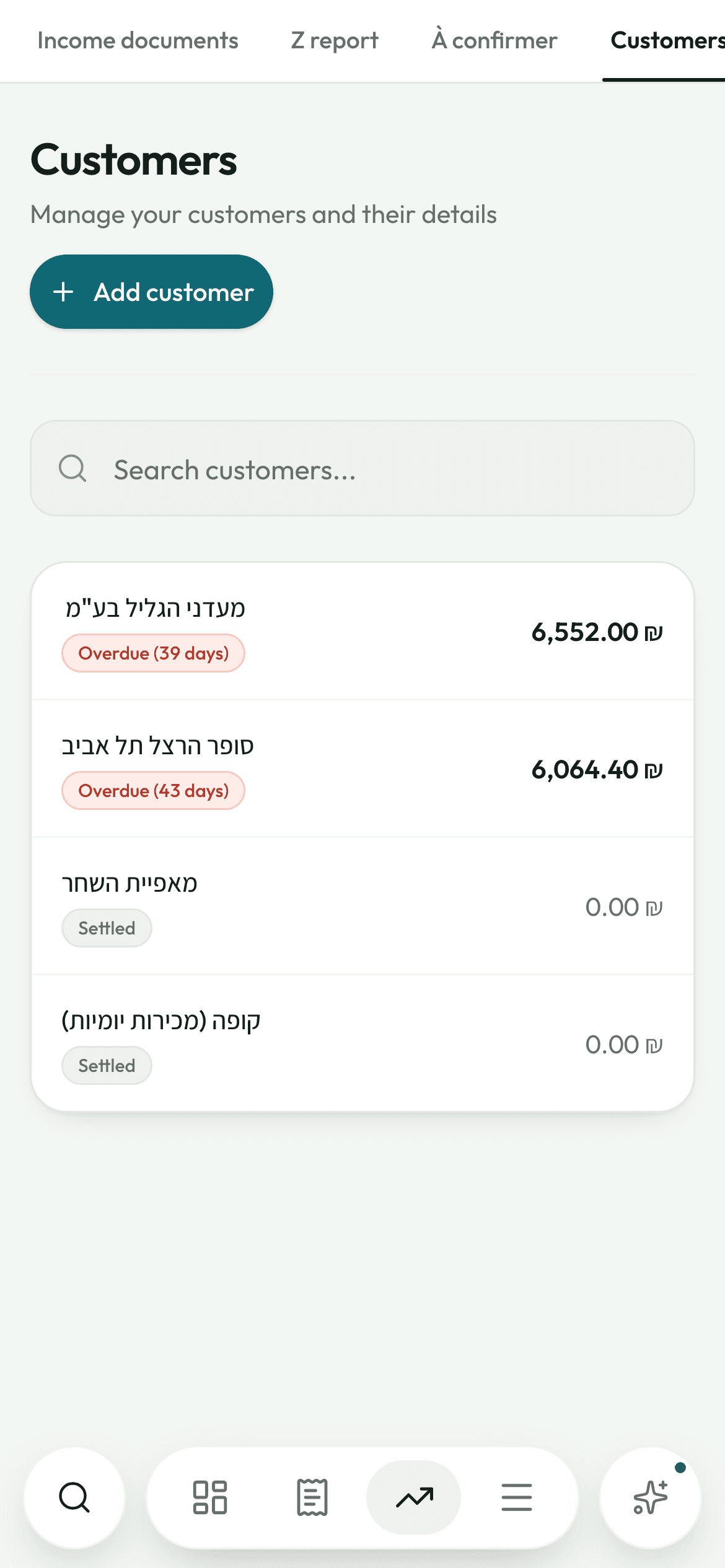
- Your customer list is sorted by what each one owes you, with a badge: Settled / Up to date / Due soon / Overdue (X d)
- “Left to collect” tab: the unsettled invoices grouped by customer, the oldest due dates first
- “Receipts” tab: only the money that has genuinely come in, never mixed in with what is merely promised
- Status Open / Closed / Cancelled, plus a red dot with the number of days overdue
- Search, filter by customer, sort, period: the screen comes back exactly as you left it
- An empty screen that tells the truth: “you have nothing yet” and “nothing in this period” are not the same sentence
Chasing payment without writing a word
Knowing is not the point — acting in one tap is. The messages are already written, ready for you to read over and send.
- “Chase” opens WhatsApp with a polite note: the customer's name, the balance, the number of days overdue. You read it over, you press send
- “Send the statement” does the same with their open invoices, what is left on each, and the total due
- WhatsApp, Call, and contact details you can copy with a long press
- An overpayment is shown on its own, with a small table: Owed / Credit / Net balance
- You can set a credit limit: on the customer's page a “Blocked” badge lights up once it is passed
- With no phone number on file, the app asks you to complete the page instead of doing nothing
Getting paid, and every figure landing right
A ₪5,000 transfer that settles four invoices spreads itself out, with no calculator. And the figure on screen is the same one everywhere in the app.
- It spreads from the oldest invoice to the most recent, and every line stays editable for a part payment
- Cheques spread over time: one per line, with its number and its date. A cheque dated later does not count in your cash yet
- A warning when a cheque number is already on file, with two possible answers
- The app turns down a payment larger than what the invoice can still take, and shows you the maximum
- A credit note deducts, a receipt never adds to what you have invoiced, and when you scan a receipt for a payment you already recorded, it is not deducted a second time
- The same balance shows on the list, on the statement, on the customer's page and in the payment window
The customer's account statement (כרטסת)
You can show a customer, line by line, where the amount they owe comes from — and send it straight to them.
- The running balance under each line, grouped by month with a subtotal, the order reversible, and a balance brought forward when you filter a period
- Export to real A4 pages, and share on WhatsApp with the balance already in the message
- Their figures at a glance: last purchase, average basket, how long they take to pay, their top five products, their last twelve months
- Every invoice, credit note or receipt on the statement opens with one tap
- Three tabs on the customer's page: Documents (with filters that count), Customer details, Accounting
Good to know
- The price you charged is filed with the customer and the date: you can always see what you invoiced them last time.
- The original goes into your Google Drive, under Customers / the customer's name — or into the credit notes folder, or the Z reports one.
- Deleting an income document also deletes its file from your Drive.
- “Mark as paid” records a real payment of the balance, worked out on what is genuinely left.
- Print an income document, or save it as a PDF laid out with your business details.
- A customer who has invoices cannot be deleted: their history is protected.
Try it on your own real invoices.
Create my account14 days on us · No credit card