Your originals
Your paperwork stays with you.
Hechbonit files your originals in your own Google Drive. A main folder, its sub-folders, and one sub-folder named after each supplier and each customer — created on their own, with nothing for you to set up first. And the day you walk away, there is nothing to take back: it is all already yours.
The filing does itself
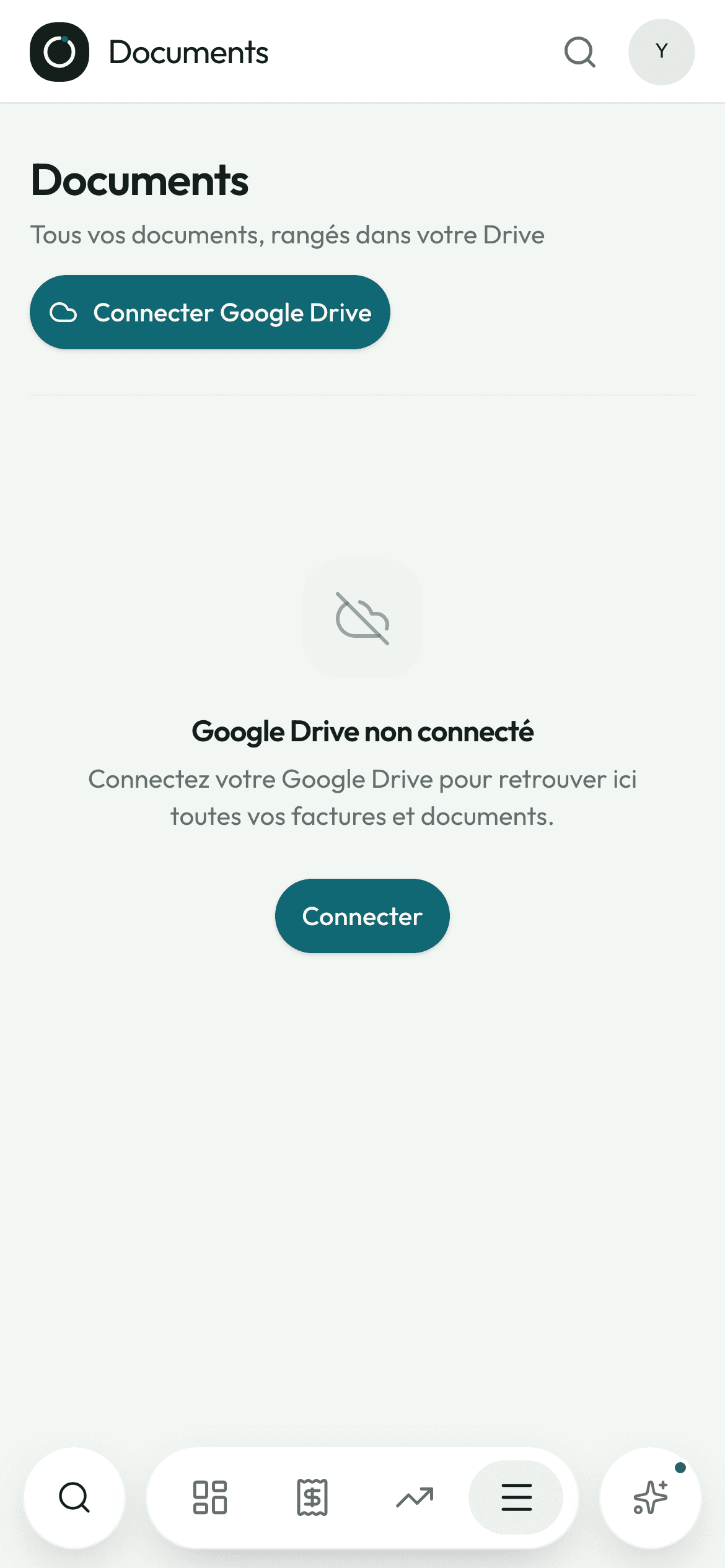
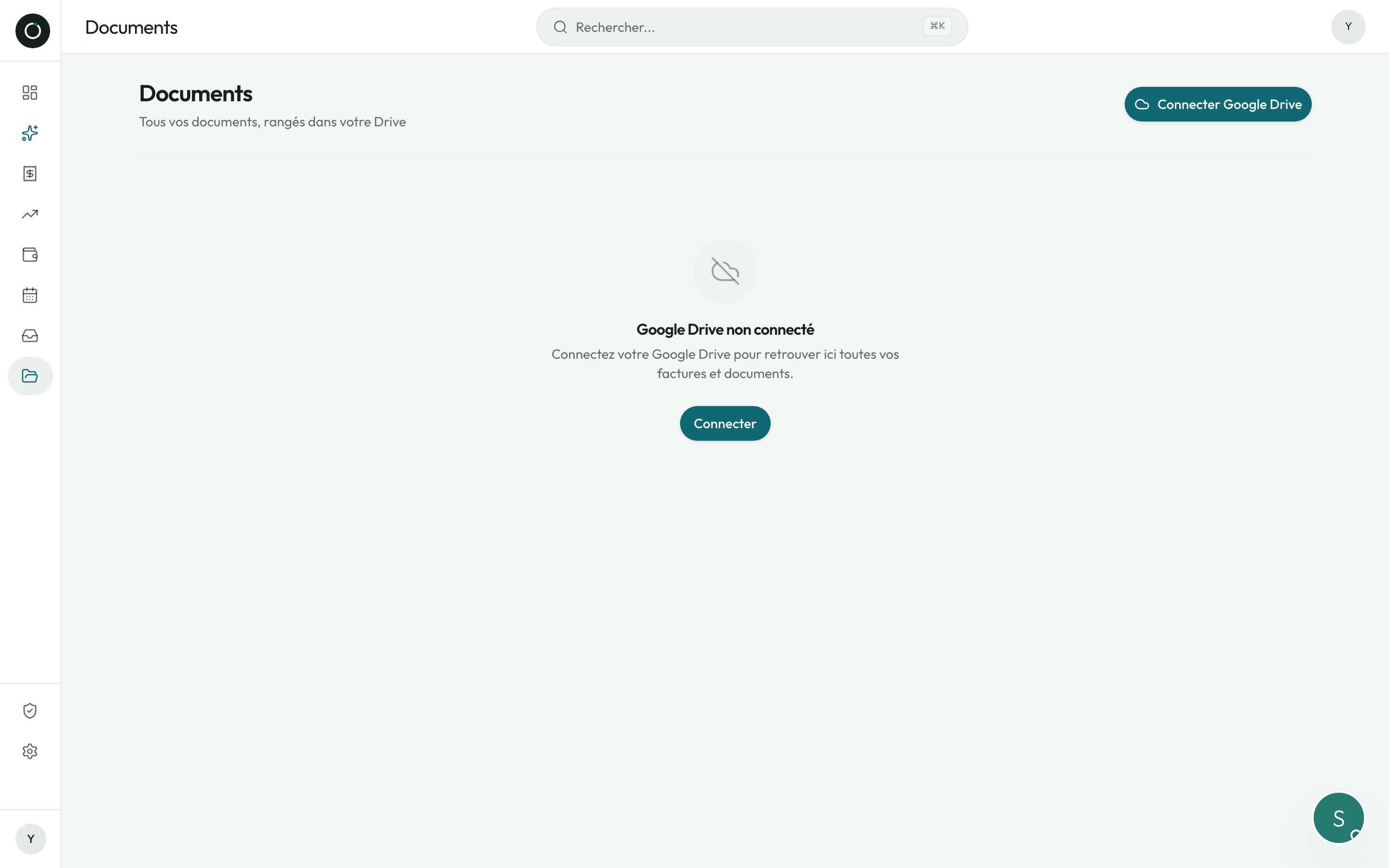
The first time you connect, the app creates a “Hechbonit” folder and its sub-folders: To sort out, Suppliers, Customers, Z reports, Credit notes, Payslips, Other, Archives. From then on, every document goes where it belongs, according to what it is.
- A Z report (דוח Z) never ends up mixed in with supplier invoices: filing follows what the paper is, not what you remember
- No folder yet in the supplier's or the customer's name? It gets created — and six months later, every one of their invoices is in the same place
- The permission asked of Google covers only what the app creates itself: not your photos, not your other folders, not your mail
- Your Google Drive is connected right at the start: a document with a picture can only be saved once it has somewhere to be filed
- If the connection is missing when you save, a window offers it and your scan stays intact behind: connect, then press again
- If the filing fails, the app tells you why — instead of leaving you to find out months later that an invoice has no original
Everything found from one screen
The Documents screen goes down into the sub-folders and shows it all in a single list: name, category, supplier or customer, date, size, with an icon for the type of file.
- Search by file name, supplier, customer or category — three letters are enough, even when the file is called “scan-0042.pdf”
- Filter chips per folder, shown only when the folder holds something, and sorting: recent · oldest · name
- A full-screen viewer inside the app, and an “Open” button through to Drive beside it
- “Share” sends the document itself: on a phone through WhatsApp, by mail or into Files; on a computer it downloads. The person receiving it has no permission to ask for, and your Google Drive sharing settings are never touched
- “Archive” moves the file into Archives without throwing it away — it stays there to read, in its own tab
Your own email address for documents
Every account gets an address of its own, along the lines of delices-market@docs.hechbonit.com. You choose it yourself, and you can read it out over the phone without spelling a random run of letters.
- Availability is checked as you type: “Available — your address will be…”
- Your suppliers send, or you forward: the document lands in “To sort out”, and it has ALREADY been read by the time you open the app
- The old address keeps receiving for as long as you want it to: an auto-forward set up six months ago does not break in silence
- Only the senders you approve can drop anything with you. A yellow banner gathers up the others: “X has sent you 3 emails — their documents are being held”
- Approving someone brings back what they had ALREADY sent, too — and when a mail is too old to be found again, the app says so plainly instead of pretending
- Signature logos and mails with no attachment are ignored: your pile does not fill up with advertising
One question per document
The “Sort out” button asks one question, and one only: “What is this?” — an expense, an income document, a Z report, or something else. The likely answer is already ticked.
- No need to say whether it is a tax invoice (חשבונית מס), a credit note (זיכוי) or a receipt (קבלה): the app reads that off the heading itself
- What the machine read — who issued it, amount, date, number — is set out just above, so you decide on the facts
- A “View” button opens the document before you decide, even if the Drive is not connected yet
- Three plain states: “Waiting to be read”, “Reading…”, “Could not be read — you can still file it”
- On a phone, a dot on the Documents entry tells you there is work waiting, without opening the screen
- The same file received twice is never handled twice
The summary for your accountant
Their address, a switch, and how often: every day, every week or every month. One email instead of fifty.
- The itemised list of expenses and income for the period — date, number, name, amount, type — with the originals attached
- You are copied in, as soon as your company email is set in your settings
- Off by default: you are the one who turns it on, and the app refuses to switch it on while the accountant's address is missing
- A send that fails is caught on the next run rather than lost, and the very first one covers only the current period
- If the email is too heavy, the documents left out are listed inside it, with the reason
- A log shows the latest sends: recipient, number of files, date, a green tick or an error message in red
Good to know
- Email a document straight after saving it, with a “My accountant” button and the addresses you used last.
- Delete an invoice, a Z report or a payslip and its file goes from the Drive as well.
- A passing network glitch does not drop your Drive: the connection is removed only when Google says outright that permission has been revoked.
- Attachments arriving by mail are checked on their content, not on their file name.
- On an expense invoice you can replace or add the original afterwards: a blurred photo taken again later, an invoice typed in by hand.
- Disconnect your Drive whenever you like, from Settings, without going through Google's own settings.